
Server monitoring with Prometheus, Node Exporter and Grafana
Step-by-step lab: Prometheus and Node Exporter with Docker Compose, a simple Grafana dashboard with uptime, disk, CPU and memory, plus alerts.
By Víctor Piles TemporalSRE and systems engineerPublished on 4 min read
In this lab I set up basic infrastructure monitoring: Prometheus collects the metrics, Node Exporter exposes them on each machine and Grafana displays them on a simple dashboard with alerts. All with Docker Compose, so you can have it running in a few minutes.
In short: install Node Exporter on every machine you want to monitor (port 9100), point Prometheus at all of them from prometheus.yml (port 9090), add Prometheus as a data source in Grafana and create four panels: uptime, disk usage, CPU and memory. Then set up alerts on those panels so you’re warned before the problem reaches your users.
What is Prometheus?
Prometheus is monitoring software. The metrics it collects help you diagnose errors or problems in the systems and applications being monitored.
What is Node Exporter?
Node Exporter exposes a wide range of hardware and kernel metrics: for example, how long the instance has been up (uptime) or disk, CPU and memory usage.
Lab
Install Grafana
The first thing you need is a Grafana instance. If you don’t have one yet, follow the official Grafana installation guide.
Configure Prometheus
Prepare the prometheus.yml configuration file and list all the instances you want to monitor:
- Replace job_name with the name of your instance.
- Replace targets with the IP address of the instance you want to monitor.
- Replace replacement with the name you want to appear in Grafana.
global:
  scrape_interval: 1m

scrape_configs:
  - job_name: "Instance1"
    static_configs:
    - targets: ["127.0.0.1:9100"]
    relabel_configs:
    - source_labels: [__address__]
      regex: '.*'
      target_label: instance
      replacement: 'instance1'

  - job_name: "Instance2"
    static_configs:
    - targets: ["127.0.0.2:9100"]
    relabel_configs:
    - source_labels: [__address__]
      regex: '.*'
      target_label: instance
      replacement: 'instance2'
Install Prometheus on the instance with Docker Compose. The docker-compose.yml has to be in the same folder as the configuration file above. You’ll need to open port 9090 on the machine to accept traffic.
services:
    prometheus:
        image: prom/prometheus:latest
        container_name: prometheus
        user: root
        restart: unless-stopped
        volumes:
        - ./prometheus.yml:/etc/prometheus/prometheus.yml
        - ./prometheus_data:/prometheus
        command:
        - '--config.file=/etc/prometheus/prometheus.yml'
        - '--storage.tsdb.path=/prometheus'
        - '--web.console.libraries=/etc/prometheus/console_libraries'
        - '--web.console.templates=/etc/prometheus/consoles'
        - '--web.enable-lifecycle'
        ports:
        - 9090:9090
Data source in Grafana
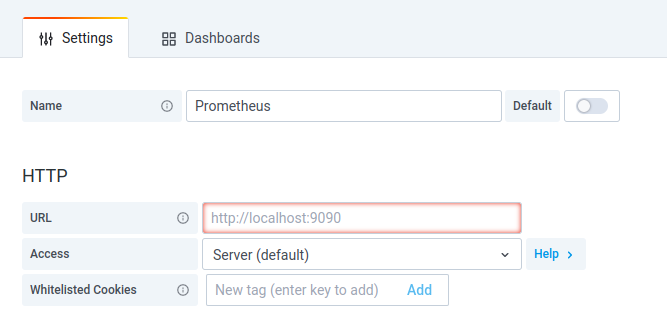
Now configure the data source in your Grafana. In the URL field, enter the Prometheus endpoint, http://$IP_Address:9090, replacing $IP_Address with the public or private address of the server where Prometheus is running.
Configure Node Exporter
Log in to the machine you want to monitor and install the Node Exporter service with Docker Compose. You’ll need to open port 9100 on the machine to accept traffic.
services:
    node-exporter:
        image: prom/node-exporter:latest
        container_name: node-exporter
        user: root
        restart: unless-stopped
        volumes:
        - /proc:/host/proc:ro
        - /sys:/host/sys:ro
        - /:/rootfs:ro
        command:
        - '--path.procfs=/host/proc'
        - '--path.rootfs=/rootfs'
        - '--path.sysfs=/host/sys'
        - '--collector.filesystem.mount-points-exclude=^/(sys|proc|dev|host|etc)($$|/)'
        ports:
        - 9100:9100
Create the dashboard in Grafana
Create a simple dashboard in Grafana to view the basic metrics, with four panels. The legend is the same in all of them:
{{instance}}Uptime (days up):
(time() - node_boot_time_seconds) / 86400Disk usage (%):
100 - (100 * ((node_filesystem_avail_bytes{mountpoint="/",fstype!="rootfs"}) / (node_filesystem_size_bytes{mountpoint="/",fstype!="rootfs"})))CPU usage (%):
(1 - avg by (instance) (irate(node_cpu_seconds_total{mode="idle"}[10m]))) * 100Memory usage (%):
100 * (1 - ((avg_over_time(node_memory_MemFree_bytes[10m]) + avg_over_time(node_memory_Cached_bytes[10m]) + avg_over_time(node_memory_Buffers_bytes[10m])) / avg_over_time(node_memory_MemTotal_bytes[10m])))Alerts in Grafana
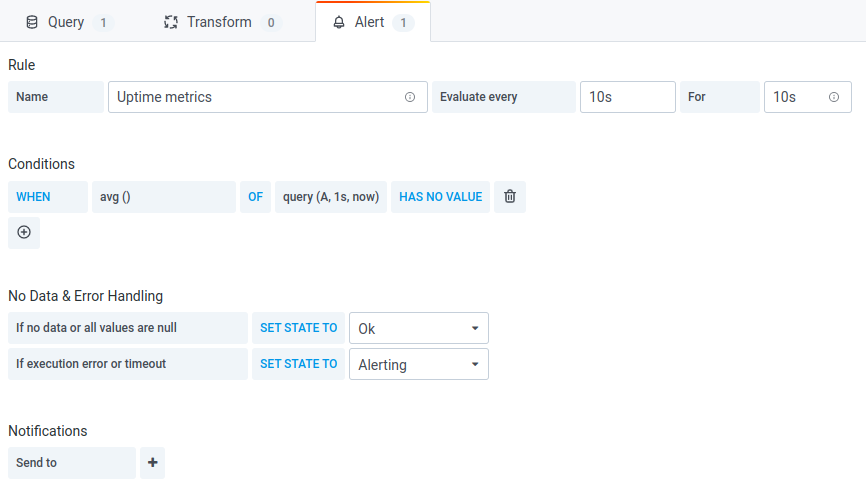
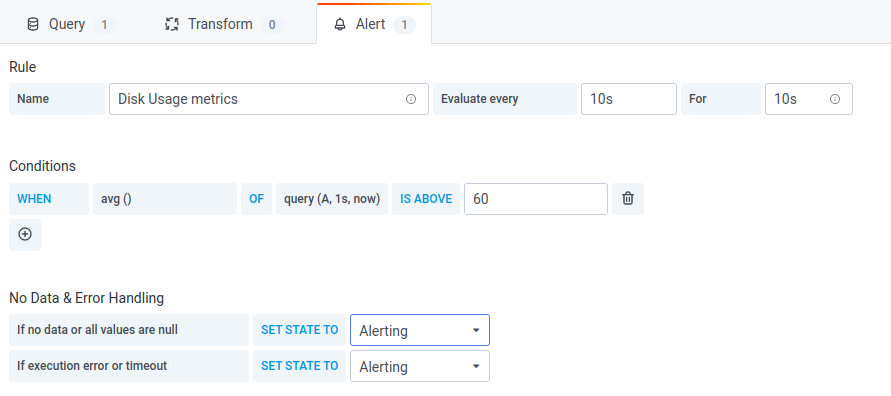
- Create a contact point and choose its type: email, Slack, Discord…
- Go into the panels you’ve just created and set up a new alert rule, sending notifications to that contact point.
- In each alert, set the thresholds that signal a problem.
The screenshots date from when I wrote the article, with Grafana’s old alerting system; in current versions this is set up under Alerting, with alert rules and contact points, but the idea is the same: a condition on the panel’s query and a destination for the notification.
If you want to go beyond this lab, in monitoring with Grafana and Prometheus I explain how I set it up and run it in production, and in observability how I extend it with logs, traces and alerts that don’t wake anyone up for no reason. If you’d like me to review yours, get in touch through the contact page.
Originally published on Medium.